
Brokers often have different teams working on different lines — one team handling ancillary (dental, vision, life) and another handling medical. This means multiple separate presentations get built for the same client. Until now, there was no way to bring them together.
With Merged Presentation, you can now combine multiple presentations into a single, unified presentation. Select which presentation to merge with, choose the benefit types to bring over, and Plansight handles the rest — giving your client one clean, consolidated view.
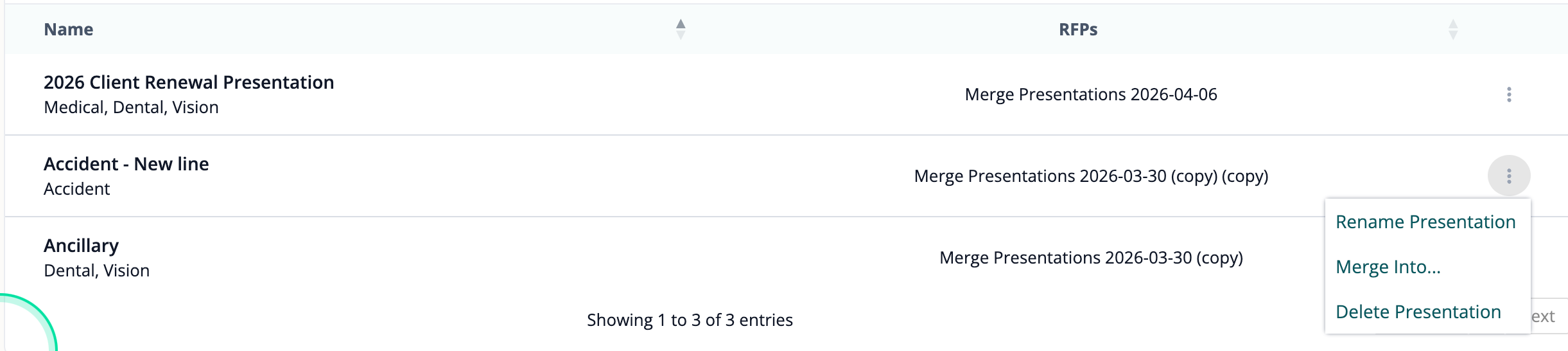
Navigate to the presentation table in the employer profile. Click the three-dot menu next to the presentation you want to merge and select "Merge Into..." from the dropdown. You'll also see options to rename or delete the presentation here.
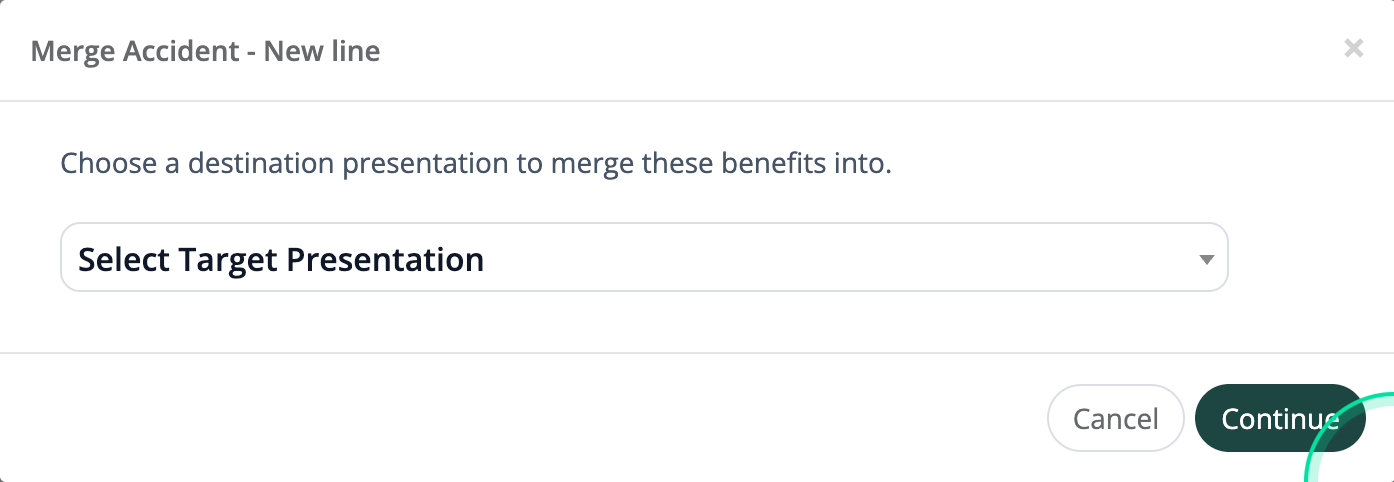
A modal appears asking you to choose a destination presentation to merge into. Use the "Select Target Presentation" dropdown to pick the presentation you want to push your benefits into, then click "Continue".
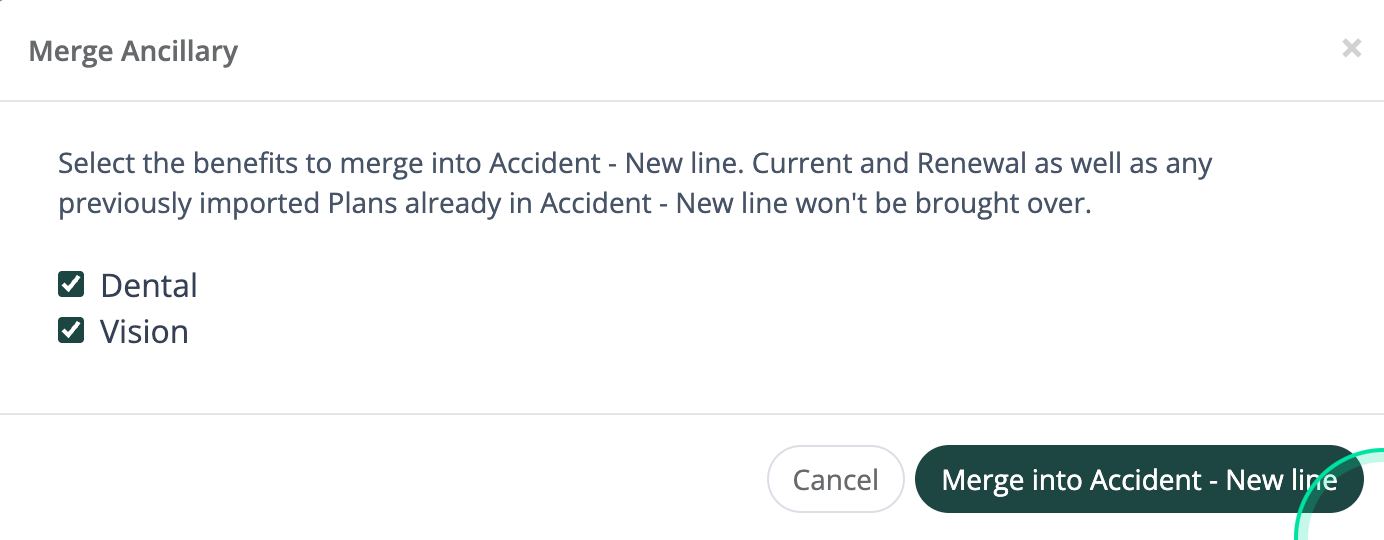
A second modal shows checkboxes for each benefit type available to merge. All types are selected by default. The modal also tells you which Current, Renewal, and previously imported plans won't be brought over. Deselect any benefit types you don't want, then click "Merge into..." to combine.
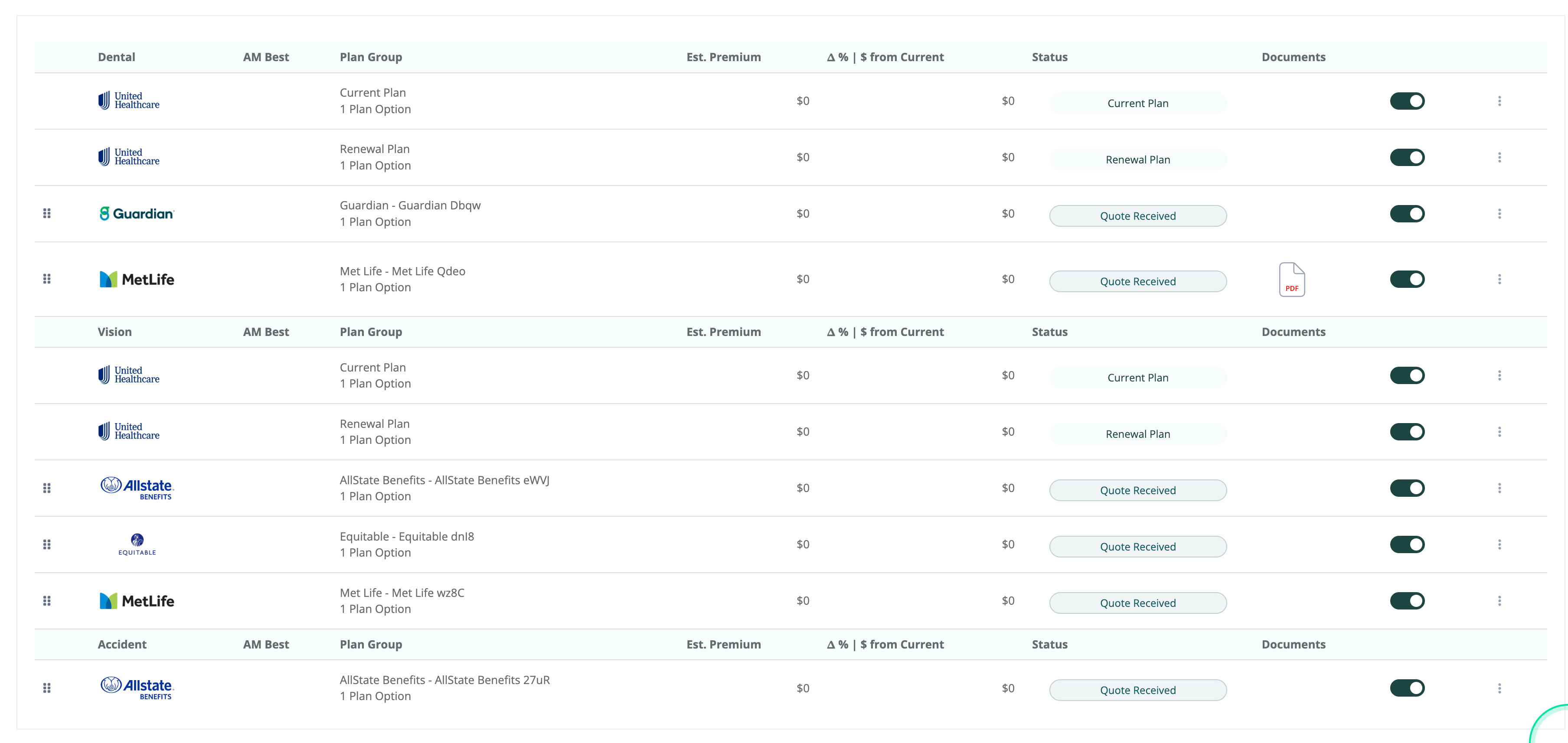
The benefit types are now combined into one presentation. All quotes, current plans, and renewal plans from the merged benefit types appear together — Dental, Vision, Accident, and any other lines are all in one place, ready to present to your client.
You cannot combine two presentations that share the same benefit type. For example, if one presentation has Dental and another has Vision, they can be combined. But if both presentations contain Dental, you won't be able to merge them.
When combining presentations, you're pushing one into another. The presentation being pushed into (the parent) must be the Small Group Community Rated Medical presentation. You push ancillary or other presentations into the medical one — not the other way around. The medical presentation is always the destination.
Plansight automatically names presentations based on the RFP name, but you can now rename any presentation directly from the presentation table on the employer profile page. This is especially helpful when combining — rename your presentations so it's easy to identify which is the parent (medical) and which ones you're pushing into it.
In many brokerages, ancillary and medical lines are handled by separate teams, each building their own presentations. Clients expect to see everything in one place. Merged Presentation eliminates the manual work of rebuilding or copy-pasting across presentations — just combine and present.
Watch this walkthrough for a step-by-step demonstration of Merged Presentation.