
Until now, Plansight's AI could only read and extract data from PDF documents. With this update, you can now upload Word (.docx) and Excel (.xlsx) files as well. The system instantly converts them to PDF behind the scenes and runs them through the same AI-powered data extraction process.
This means no more manually converting documents before uploading — just drag and drop your Word or Excel files and let Plansight handle the rest. You'll even be able to view the converted documents in the side-by-side view.
Upload your .docx or .xlsx files just like you would a PDF. Drag and drop or browse — the process is exactly the same.
Plansight instantly converts the document to PDF and feeds it through the same AI extraction process. The data is pulled and pre-populated into your quote or plan — no extra steps needed.
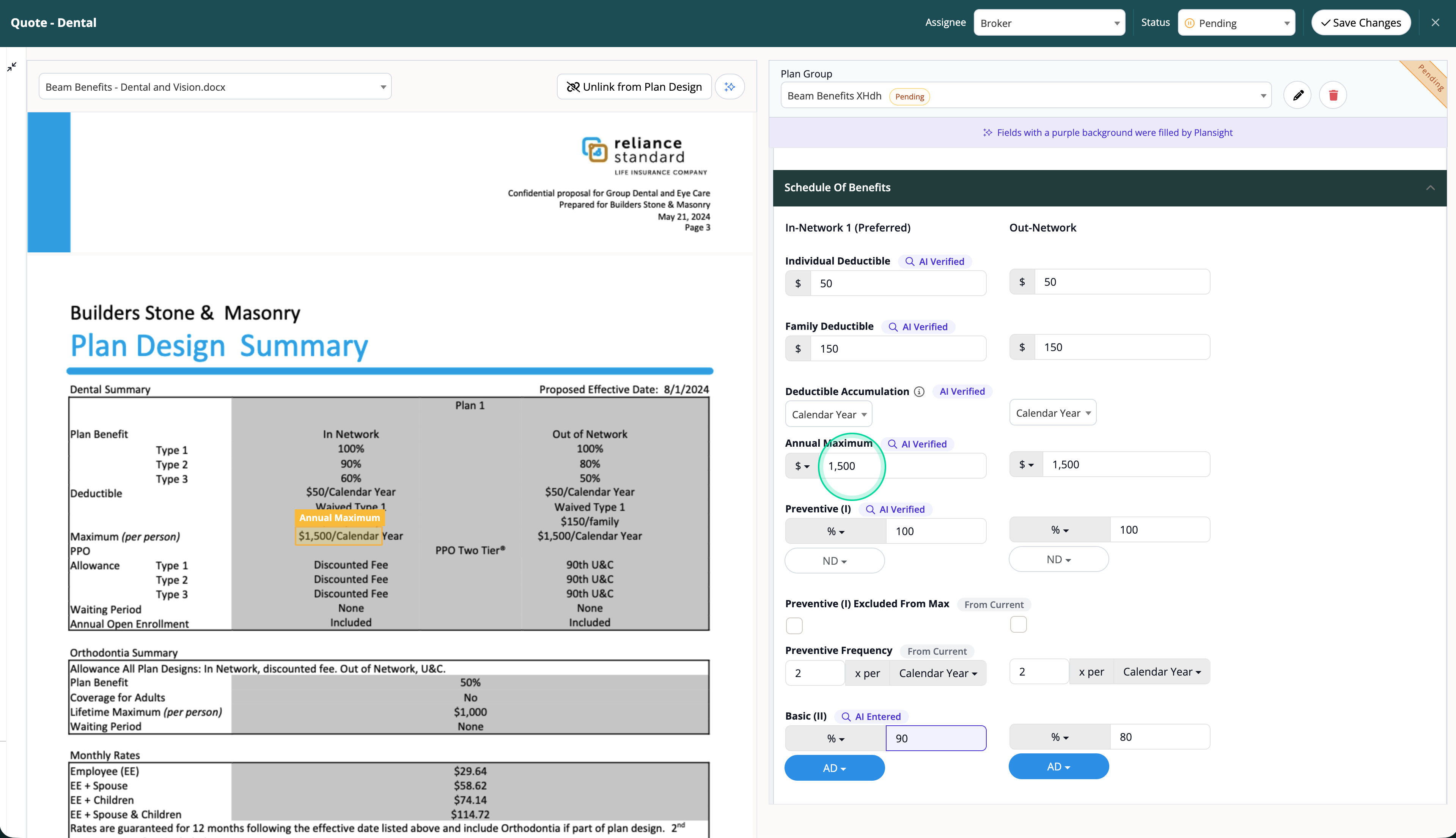
View the converted document alongside the extracted data in the side-by-side view. The Word or Excel file is rendered as a PDF on the left, with the AI-populated fields on the right for easy verification.
Previously, only PDFs could be processed by our AI. We've integrated a conversion API that instantly transforms Word and Excel files to PDF format, then runs them through the same extraction pipeline. A Document table Elasticsearch reindex ensures all converted documents are fully searchable.
This is a monumental improvement to how you verify AI-extracted data. In the side-by-side view, you can now hover over any value that the AI found on the right side, and the document on the left will automatically scroll to the exact page and highlight where that value was pulled from.
No more hunting through pages to verify data. Simply keep your mouse on the extracted field, and Plansight instantly shows you exactly where in the source document the information came from. This makes verification fast, intuitive, and incredibly easy.
In the side-by-side view, hover over any AI-extracted value on the right. The document on the left automatically scrolls to the correct page and highlights the exact location where the AI found that data.
Keep your mouse over the value on the right — the highlighted source stays visible on the left. This lets you quickly confirm the AI pulled the correct data without manually scrolling or searching through the document.
Watch these walkthroughs for step-by-step demonstrations of the AI updates.